🧠 Concept
AE-ComfyUI-Panels adds custom ScriptUI panels to Adobe After Effects that talk directly to ComfyUI. You can send prompts or selected layers from AE to your ComfyUI workflows, generate new images, and automatically import the results back into your composition — all without leaving After Effects.
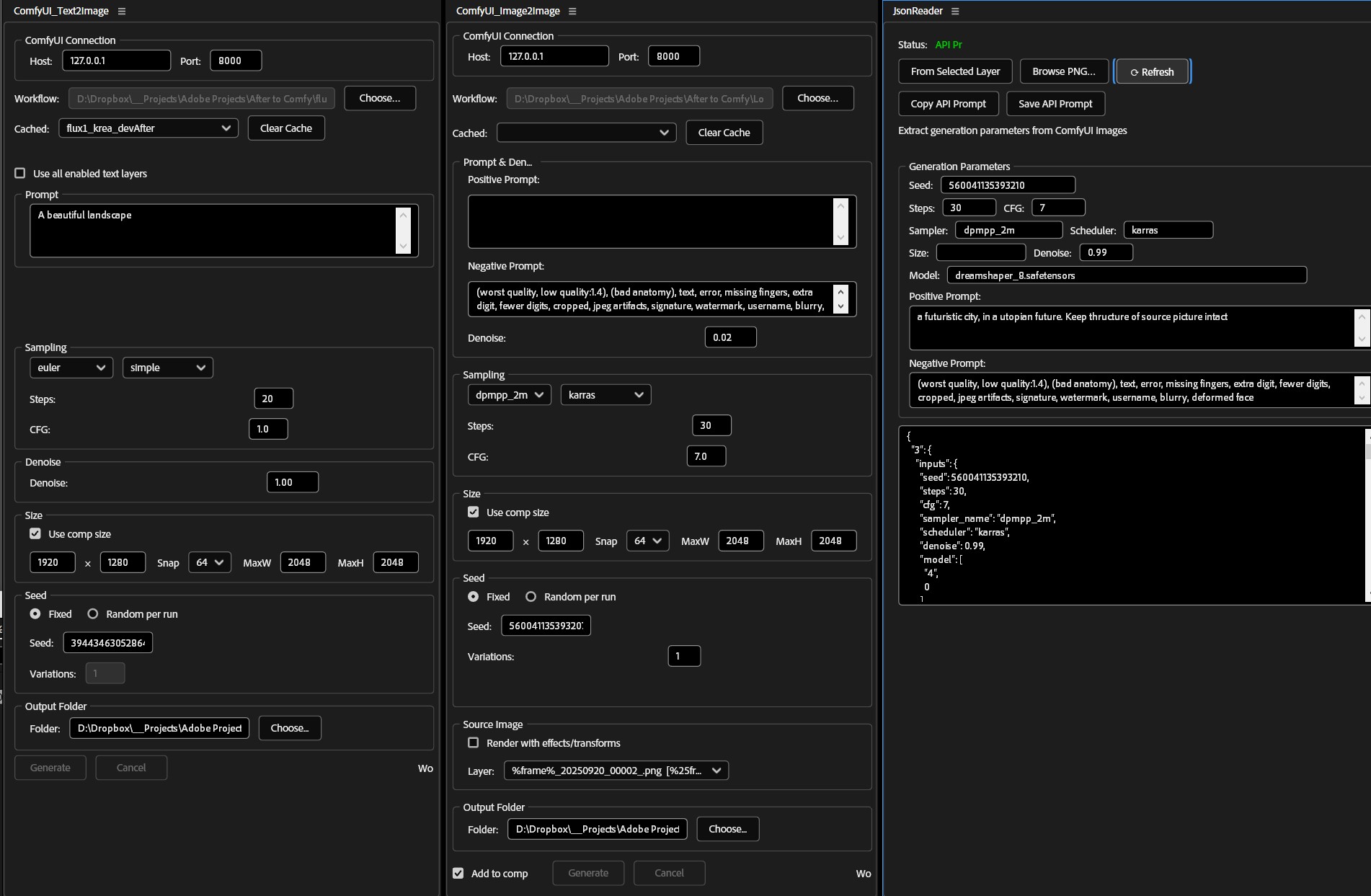
🎨 Panels
📝 Text-to-Image Panel
- Generate AI images from text prompts directly in After Effects
- Control resolution, steps, CFG, sampler, and scheduler settings
- Support for positive and negative prompts
- Automatic import of generated images into your AE project
- Workflow caching for faster loading of previously used workflows
🖼️ Image-to-Image Panel
- Send selected layers to ComfyUI for AI-powered modifications
- Adjust denoise strength for controlling variation intensity
- Generate multiple variations with seed control and denoise increments
- Option to render with effects/transforms or use raw source files
- Automatic upload and processing via ComfyUI's /upload/image API
📊 JSON Metadata Reader
- Inspect ComfyUI generation metadata (seed, CFG, steps, model, etc.)
- Extract workflow parameters from generated images
- Log settings for reproducibility and documentation
🔧 Additional Features
- Works with local ComfyUI setups (default:
http://127.0.0.1:8188) - Dynamic API introspection for sampler and scheduler options
- Persistent settings and workflow caching
- MIT-licensed, open for personal and commercial use
⚙️ Installation
Step 1: Clone or download the repo
-
Clone with Git:
git clone https://github.com/ckonteos80/AE-ComfyUI-Panels.git - Or download a ZIP from the latest release
Step 2: Install the panels into After Effects
- Copy the panel scripts into your AE
Scripts/ScriptUI Panels/folder - Restart After Effects so it can detect the new panels
- Open them via Window → AE-ComfyUI Panel (or respective panel names)
▶️ Usage
Text-to-Image Panel
- Open the Text2Image panel inside AE
- Enter your prompt, resolution, steps, and seed values
- Click Generate to send the request to ComfyUI
- The generated image is imported into your project and ready to use in a comp
Image-to-Image Panel
- Select an image layer in your composition
- Open the Image2Image panel
- Adjust denoise/strength and other settings if available
- Generate variations; the results appear as new layers in your AE project
Metadata Reader
- Use the JsonReader tools to inspect ComfyUI’s JSON output
- Log or embed seed/parameter info for reproducibility
🧩 ComfyUI Setup
AE-ComfyUI-Panels expects a running ComfyUI server. Configure your panel’s API URL to point to your ComfyUI instance and load a workflow that accepts either a text prompt or an input image (depending on which panel you use).
- Start ComfyUI with the desired model/checkpoint loaded
- Ensure your workflow exposes the proper API nodes for Text2Image / Image2Image
- Optionally store outputs and JSON metadata where AE can read them